
The input
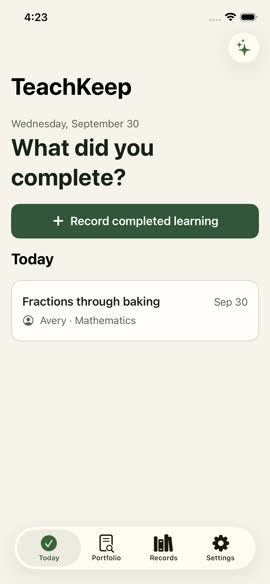 A 309.8-second screen recording of our homeschool record-keeping app TeachKeep, captured in the iOS Simulator during a release check: 1170×2532, H.264, 13.5 MB, no sound. The data is a test profile (a child called Avery with one maths activity), so no real person appears. It walks through five screens: Today, the form for recording completed learning, Records, one record's detail page and Edit activity.
Nothing about it was made for an ad. Most of the five minutes is the app sitting still between taps, and the simulator only writes a frame when the screen changes. That is the realistic starting point for most small teams: whatever recording you already have.
Pick the structure
The recording shows a sequence (log an activity → find it again → attach proof), so we picked the three-step walkthrough. On upload the editor spread three 7-second scenes evenly across the recording, at 0, 151.4 and 302.8 s. On a long recording that mostly lands on idle screens, so we moved all three.
If your recording shows one feature continuously, hook + demo is the better fit; if it shows a transformation, use input → result.
Choose the moments
We scrubbed the recording and noted where each screen starts (Today at 1.8 s, the form at 32 s, Records at 191.8 s, the detail page at 223.1 s), then typed each scene's From and To times.
| Ad time | Source | What is on screen | Label |
|---|---|---|---|
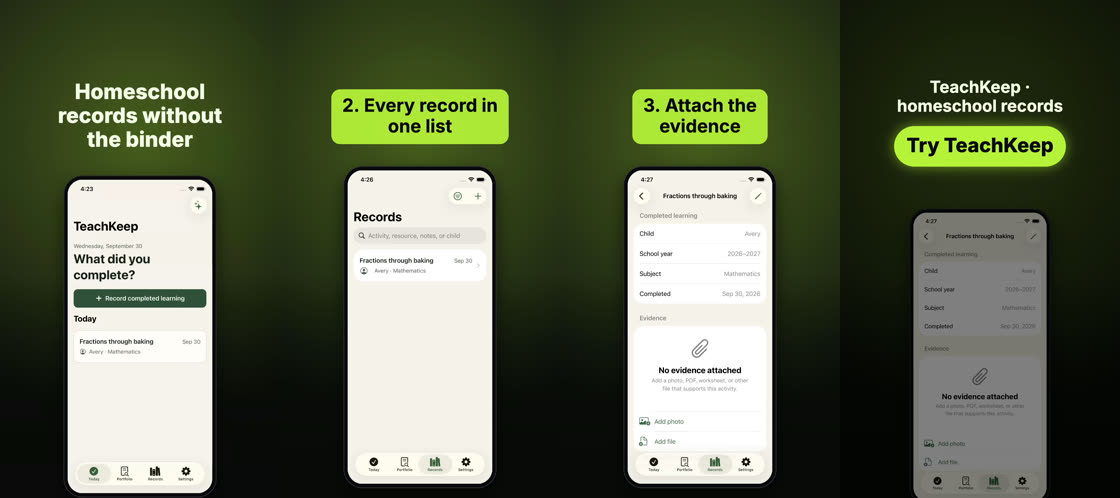
| 0–7 s | 4.0–11.0 s | Today: "What did you complete?", the Record completed learning button and one logged activity | 1. Log what they learned |
| 7–14 s | 193.0–200.0 s | Records: the search field and the activity in the list | 2. Every record in one list |
| 14–21 s | 225.0–232.0 s | The activity's detail page: child, school year, subject, date and the Evidence section with Add photo and Add file | 3. Attach the evidence |
One weakness we left in on purpose so you can see it: scene 3 says "Attach the evidence", but the footage only shows the empty Evidence section with its buttons, not a photo being attached. A better take would record the attach step itself. The editor can only show what the recording shows, so plan the recording around the claims you want to make.
Write the words
- Hook (0–2.5 s): "Homeschool records without the binder". It names the outcome the footage then shows; no claim the app can't back up.
- Step labels: one short phrase each, shown after the hook leaves, in an accent-coloured pill.
- End card (last 2.5 s): the line "TeachKeep · homeschool records" above a "Try TeachKeep" button. The editor shrinks the button text to keep it on one line before it wraps.
Layout and safe zones
We used the phone-on-background layout with the green palette (background #101410, accent #b6f23a), close to the app's own green. Each change was saved as a new version, so earlier versions stay exportable.
In the exported file every piece of text, including the end-card button, sits between y = 311 and 641 px, inside the strictest combination of the TikTok, Reels and Shorts safe zones (288 px top, 660 px bottom). The footage itself runs to the bottom of the frame, where platform captions will cover part of the phone; that is acceptable for UI that is not the point of the scene. Turn on the safe-zone overlay in the preview to check yours, or run any file through the safe-zone checker.
Export and check
- Export renders exactly the saved version you are looking at; editing afterwards doesn't change a file that is already rendering.
- Output: 1080×1920, 30 fps, H.264 High profile, 630 frames, 21.000 s, 3,282,350 bytes, no audio track. We checked it with ffprobe and a full decode before publishing it here.
- Frame one is fully drawn (hook, phone, app UI). No fade from black, because frame one is also the thumbnail.
- Before you upload to an ad account, watch it once at full size and once at phone size with the sound off.
What this example does not show
Whether the ad works. It hasn't run. It also doesn't show a talking-head or UGC format, which the editor doesn't make, or a recording with sound. The 9.2-second render time is one run on one machine, not a benchmark. The app demo video guide covers how to record a better take than our QA capture.
Questions
How long should the recording be?
Longer than the ad. We used 21 seconds out of a 5-minute recording; the editor lets you pick the moments, so record the whole flow slowly and cut later.
Does the recording need sound?
No. Most feed viewers start muted, and the words on screen carry the message. Keep the recording's sound only if it explains something (a voice-over, an app sound that matters).
Can I reuse the project for another variant?
Yes. Every edit is saved as a version; change the hook or swap the step order and export again. Exporting the same version twice gives you the same file and does not count as a new export.
Did this ad perform well?
We don't know yet, and we won't claim it. It is a demonstration of the workflow on our own app, not a campaign result. When we run it, we will publish the numbers with dates and spend.
Sources
- TikTok Ads Manager: in-feed ad safe zone template — 240 / 660 / 120 px margins at 1080×1920
- Meta Ads Guide: Instagram Reels video ads — 14% top, 35% bottom, 6% sides
- Google Ads Help: universal safe zones for video ads — Shorts / vertical video
Checked 2026-10-28. Platform rules change; the link is the authority, this page is the summary.